Showing posts with label download. Show all posts

Sunday, March 30, 2008

Design Style Resources: SIMPLICITY IN WEB 2.0

Here we go again, with another Design Style Resources. There should be more of these, but only pick the several best of them to give you a clue of what Web 2.0 design is.


LAYOUT DESIGN GUIDELINES


Web2.0 Design Style Guide
by Web Design from Scratch

The visual design of Web 2.0 by Pixel Acres


WEB 2.0 INTERFACE TUTORIALS:

How to Create a Simple & Sleek Web 2.0 Site Footer by Daniel Lopes

Photobucket


Modern menu - Photoshop tutorial


Photobucket

Design a Web 2.0 tab with Photoshop

Photobucket

Vista Style Layout - Talk Mania Forum

Photobucket

Creating Object Reflection on a Surfaceby Graphic Identity

Photo Sharing and Video Hosting at Photobucket


CSS


Rounded Corners in CSS

CSS Rounded Box Generator

Speech Bubbles

Photobucket

Expandable Box

Photobucket


GRAPHIC DESIGN APPLICATION AND TOOLS

Ultimate Web 2.0 Gradients – by Deziner Folio

Photobucket

Gradient Image Maker

CSS Rounded Box Generator

Stripe Generator 2.0

Stripe Designer


Web Applications for Designers


Web 2.0 Logo Creator


COLOR SCHEME

The Colors of Web 2.0 by Chris Messina

Photobucket

Web 2.0 Colour Palette by Stuart Brown
This is my favorite old post. Visit the website to get the hexa color codes.


FONTS AND TEXT EFFECT

Fonts

The trends in web typography by Daniel

Great Fonts for Web 2.0 by Stuart Brown

5 Free Fonts for Web 2.0 Logo


Text Effect Tutorials


Web 2.0 Text Effect
by Aviva Directory
The Glossy TEXT web2.0 style by aaron
Photobucket


LOGOS

Is There a New Trend in Logo Design? by Toon (Guest Blog Post for Creative Curio)

How will your Favorite Logos look in Web 2.0?

A Guide to Web 2.0 Logos

How Web 2.0 Logos are Drawn by Hongkiat

20 Corporate Logos redesigned for Web 2.0 by Alex


ICONS, BADGES, and BUTTONS

Icons

Web site icons

Photobucket


Illustrator Vector Round Icons by ~colormist

Photobucket


Social networking icons

Photobucket

Badges

Web 2.0 Badges by ~Forzaken

Photobucket
Web 2.0 Badges

Buttons

Color Button 2.0 by ~IdeandoGrafica

Photobucket

Download Button by ~WhoIsScott

Photobucket

Pointy by ~adrice

Photobucket

Power Button in black by ~helmlein

Photobucket

Tutorials

Quick ways to Create Buttons using Photoshop and Illustrator by Graphic Identity

Translucent IM Style Illustrator Icon Tutorial by Spoon Graphics

Photobucket

Handy Web 2.0 Icons In Photoshop by Fabio

Photobucket

Glossy web 2.0 badge with rounded corners by Photoshop It

Photobucket

Web 2.0 style buttons by Iris-Design

Photobucket

Wednesday, February 6, 2008

Design Style Resources: GRUNGE URBAN ART

Great listings of Grunge Urban Art design resources just to help you to figure out what they’re look like. When you use one of those resources, please credit the original designers for appreciation and read his or her design copyright before you apply them to your design.

Please tell us any broken links in this post by sending us email or comment to this post.


IMAGE EFFECT TUTORIALS:

Pop Art Inspired by Lichtenstein By Melissa Clifton
Design Style Resources: GRUNGE URBAN ART

Creating grunge brushes by Veerle
Design Style Resources: GRUNGE URBAN ART

How to Combine Pixel and Vector to Produce Striking Artwork by SpoonGraphics
Design Style Resources: GRUNGE URBAN ART


VECTORS:

Random Free Vectors Part 11: Watercolors by Bittbox
Design Style Resources: GRUNGE URBAN ART

Free Vector Resources Part 3 - Urban Collection by SpoonGraphics
Design Style Resources: GRUNGE URBAN ART

Vector Resources Part 4 - Punk Collection by SpoonGraphics
Design Style Resources: GRUNGE URBAN ART

106 Free Vector Shapes Pack #1 by Gabriele Magurno
Design Style Resources: GRUNGE URBAN ART

Floral Grunge Vector Art by GFX Palette
Design Style Resources: GRUNGE URBAN ART


PHOTOSHOP BRUSHES:

Buildings
  • Architectural Brush Set 1 by *ardcor
  • Design Style Resources: GRUNGE URBAN ART
  • Cityscapes by ~tiffcali06
  • Design Style Resources: GRUNGE URBAN ART

    Splatters
  • Free Hi-Res Splatter Photoshop Brushes by Bittbox
  • Design Style Resources: GRUNGE URBAN ART
  • Splatter brushes by ~C130
    Available in for Photoshop 6 and above
  • Design Style Resources: GRUNGE URBAN ART

    Scratch / Noise / Cracks
  • Procedural Grunge Brushes by *lorddarq
  • Design Style Resources: GRUNGE URBAN ART
  • Scratch Texture Brushes PS 7.0 by ~Pfefferminzchen
  • Design Style Resources: GRUNGE URBAN ART
  • Bittbox 18 Hi-Res Watercolor Photoshop Brushes by Bittbox
  • Design Style Resources: GRUNGE URBAN ART


    FONTS & TEXT EFFECT:

    Typewriter fonts
  • Colour me purple by Kimberly Geswein

  • Design Style Resources: GRUNGE URBAN ART
  • 3 Free Destroyed Typewriter Fonts by Graphic Identity


  • Grunge fonts
  • 28 Days Later by Filmhimmel

  • Design Style Resources: GRUNGE URBAN ART
  • 6 Free Graffiti, Grunge, and Destroyed Fonts by Graphic Identity


  • Grunge Text Effect in Photoshop action
  • Grunge Text Effect in Photoshop Action – Part 1

  • Design Style Resources: GRUNGE URBAN ART
  • Grunge Text Effect in Photoshop Action – Part 2

  • Grunge Text Effect in Photoshop Action – Part 3


  • Text Effect Photoshop tutorials
  • Worn Rubber Stamp Text by Design This

  • Graffiti Text With Photoshop by Dreamdealer

  • Worn and Torn Text Effect by Photoshop Essentials


  • TEXTURES:

    Textures 52 by ~bombay101
    Design Style Resources: GRUNGE URBAN ART
    Grungy paper texture v.8 by =bashcorpo
    Design Style Resources: GRUNGE URBAN ART
    Texture set 04 by ~pildas
    Design Style Resources: GRUNGE URBAN ART


    COLOR SCHEME:

    Design Style Resources: GRUNGE URBAN ART

    We are also preparing to post series of design styles as follows, they could be: Techno, Corporate, Web 2.0 theme and many more. Graphic Identity team now plans to publish PDF file format that contain a compilation of these design series, a free E-book to download.

    If you are a graphic designer who is also interested to contribute your FREE supporting resources to create such design, please feel free to contact us via email graphicidentity.blog@gmail.com. You would have the chance to promote your blog compiled with other designers in E-book publication. You can submit: graphic design tutorials, photoshop brushes, vectors, fonts or anything classified as free supporting resources to create specific design style.

    Be sure that you don’t missed the blog updates by subscribing to Graphic Identity RSS feed or subscribe by Email.

    Saturday, December 22, 2007

    How to Create Water Droplets in Photoshop

    It’s been quite a while since my last Photoshop Tutorial guys :), anyway I spent my long holiday to write another tutorial, which is how to create water droplets in Photoshop.

    I also included the photoshop action to create this water droplets effect, and there are two kinds of action for creating: bigger water droplets and the smaller one.

    This tutorial is very easy for photoshop beginners, but actually there are also another ways of technique to create water droplets using Photoshop. The problem is sometime the water droplets won’t appear to be natural or realistic on the first attempt of applying some filter effect. Filter effects are would likely produce uniform artificially look of water droplets on an object surface. Therefore, as usual...you need to do the retouch to finish this effect. Lets begin now!

    Step 1 – Working with a New File

    Open a new file of image that has any object, it could be leaf, flower, glass of water or any interesting objects to practice this file.

    Add new layer and place it above your image object layer. Activate this layer (work on this layer) from now on.
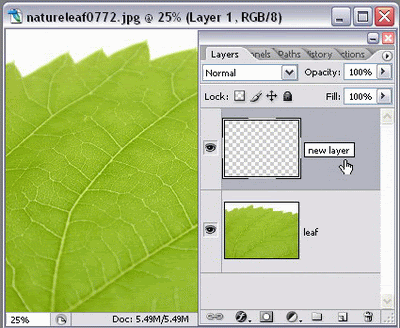
    How to Create Water Droplets in Photoshop

    Press “D” key to set the color palette into black and white or find the color palette on the Tool Box to set it
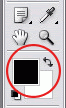
    How to Create Water Droplets in Photoshop

    And fill the new layer with the foreground color which is black.
    How to Create Water Droplets in Photoshop


    Step 2 – Working with Filters Effect

    Go to the menu Filter > Render > Fibers and set the value in the dialogue box (Variance: 16.0 ; Strength: 4.0) just like being shown here:
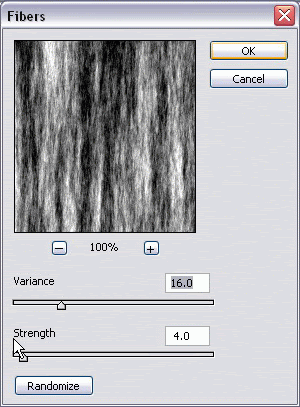
    How to Create Water Droplets in Photoshop

    Then look again to menu Filter > Texture > Stained Glass, set the value in the option box: Cell Size: 6 ; Border Thickness: 10 ; Light Intensity: 1:
    How to Create Water Droplets in Photoshop

    Find menu Filter > Sketch > Plaster and set the value in the dialogue box: Image Balance: 20 ; Smothness: 8 ; Light Direction: bottom:
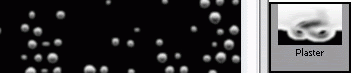
    How to Create Water Droplets in Photoshop


    Step 3 – Using Magic Wand Tool to Clear the Black Background

    How to Create Water Droplets in Photoshop

    On the ToolBox, click on magic wand tool and set its Tolerance value: 32.

    How to Create Water Droplets in Photoshop

    Back to your workspace, working still in new layer that now almost show water droplets; click the black background of your water droplets layer.
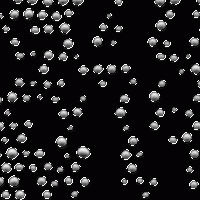
    How to Create Water Droplets in Photoshop

    Press Delete and to remove the selection, just go to menu Select > Deselect or “Ctrl + D”.


    Step 4 – Finishing Retouch

    Go to the Layers Panel and set the Blending Mode from Normal to Overlay and set the Opacity to 73%.
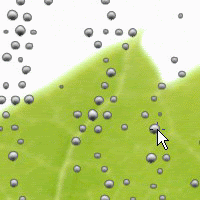
    How to Create Water Droplets in Photoshop

    As I told you in the beginning, to create almost realistic water droplets effect on a surface, you need to do the finishing retouch. You can chose to use layer masking technique or simply erasing the unwanted spot water droplets to do it. Somehow using both of those techniques together would also help ;)

    • Layer Masking Technique
    On the layer panel, you can find Layer Mask icon and click it to add layer mask. Click the layer mask which created right next to your water droplets.
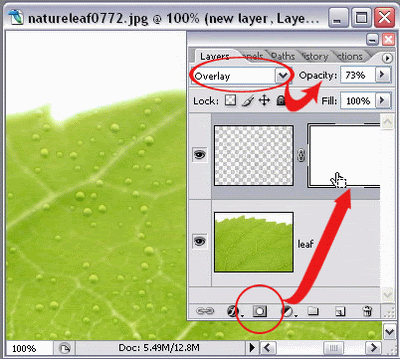
    How to Create Water Droplets in Photoshop

    Find the Brush Tool on the Tool Box, set the opacity somewhere between 35% – 55% and wipe the brush on your workspace, pick some random spot so your water droplets won’t look uniform in shapes again.
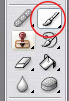
    How to Create Water Droplets in Photoshop

    If you want to make them look almost disappear, especially outside of your object surface, set the opacity of your brush to 100%.

    Layer masking gives you easy way blend the water droplets to the object surface without really making them disappear.

    • Eraser Tool
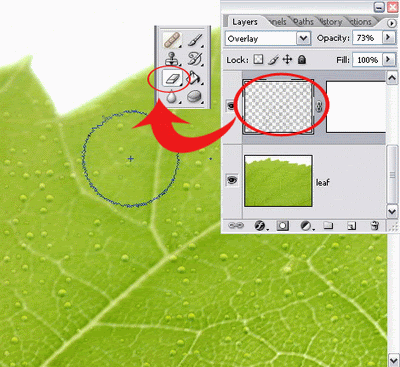
     If you wish to use eraser tool, inactivate the layer mask by clicking on the original water droplets layer which is placed on the left side of the layer mask.
    How to Create Water Droplets in Photoshop

    Set the opacity and brush tip as you want, the more it gets close to 100% value, then your eraser tool can absolutely erase the water droplets without a trace.


    Water Droplets Effect in Photoshop Action


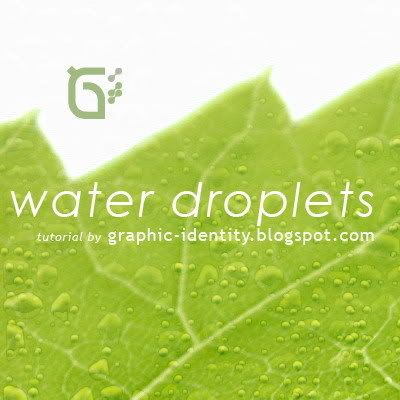
    Want to do it quick ;), download this water droplets effect photoshop action to apply on an object surface. There are actually two actions in single file, one is to create bigger water droplets, and the other one is to create the smaller one.

    All you need is an image file on a new layer, install the photoshop action and play it. Wait in about 50 secs, and you’ll get these droplets instantly.

    Do the Finishing Retouch in Step 4 above to create nice and realistic water droplets effect, and you’re done :)

    If you don’t know what Photoshop Action is and how to install it, you can go to my previous tutorial post about Photoshop Action.

    Graphic Identity - water droplets.atn (3 KB)
    Download Water Droplets in Photoshop Action

    Graphic Identity - water droplets.rar (798 B)
    Download Water Droplets in Photoshop Action

    How to Create Water Droplets in Photoshop

    Don’t miss out to download my next photoshop action series by subscribing to my feed!

    Related Tutorial Links: