Showing posts with label free design box. Show all posts

Saturday, December 22, 2007

How to Create Water Droplets in Photoshop

It’s been quite a while since my last Photoshop Tutorial guys :), anyway I spent my long holiday to write another tutorial, which is how to create water droplets in Photoshop.

I also included the photoshop action to create this water droplets effect, and there are two kinds of action for creating: bigger water droplets and the smaller one.

This tutorial is very easy for photoshop beginners, but actually there are also another ways of technique to create water droplets using Photoshop. The problem is sometime the water droplets won’t appear to be natural or realistic on the first attempt of applying some filter effect. Filter effects are would likely produce uniform artificially look of water droplets on an object surface. Therefore, as usual...you need to do the retouch to finish this effect. Lets begin now!

Step 1 – Working with a New File

Open a new file of image that has any object, it could be leaf, flower, glass of water or any interesting objects to practice this file.

Add new layer and place it above your image object layer. Activate this layer (work on this layer) from now on.
How to Create Water Droplets in Photoshop

Press “D” key to set the color palette into black and white or find the color palette on the Tool Box to set it
How to Create Water Droplets in Photoshop

And fill the new layer with the foreground color which is black.
How to Create Water Droplets in Photoshop


Step 2 – Working with Filters Effect

Go to the menu Filter > Render > Fibers and set the value in the dialogue box (Variance: 16.0 ; Strength: 4.0) just like being shown here:
How to Create Water Droplets in Photoshop

Then look again to menu Filter > Texture > Stained Glass, set the value in the option box: Cell Size: 6 ; Border Thickness: 10 ; Light Intensity: 1:
How to Create Water Droplets in Photoshop

Find menu Filter > Sketch > Plaster and set the value in the dialogue box: Image Balance: 20 ; Smothness: 8 ; Light Direction: bottom:
How to Create Water Droplets in Photoshop


Step 3 – Using Magic Wand Tool to Clear the Black Background

How to Create Water Droplets in Photoshop

On the ToolBox, click on magic wand tool and set its Tolerance value: 32.
How to Create Water Droplets in Photoshop

Back to your workspace, working still in new layer that now almost show water droplets; click the black background of your water droplets layer.
How to Create Water Droplets in Photoshop

Press Delete and to remove the selection, just go to menu Select > Deselect or “Ctrl + D”.


Step 4 – Finishing Retouch

Go to the Layers Panel and set the Blending Mode from Normal to Overlay and set the Opacity to 73%.
How to Create Water Droplets in Photoshop

As I told you in the beginning, to create almost realistic water droplets effect on a surface, you need to do the finishing retouch. You can chose to use layer masking technique or simply erasing the unwanted spot water droplets to do it. Somehow using both of those techniques together would also help ;)

  • Layer Masking Technique
On the layer panel, you can find Layer Mask icon and click it to add layer mask. Click the layer mask which created right next to your water droplets.
How to Create Water Droplets in Photoshop

Find the Brush Tool on the Tool Box, set the opacity somewhere between 35% – 55% and wipe the brush on your workspace, pick some random spot so your water droplets won’t look uniform in shapes again.
How to Create Water Droplets in Photoshop

If you want to make them look almost disappear, especially outside of your object surface, set the opacity of your brush to 100%.

Layer masking gives you easy way blend the water droplets to the object surface without really making them disappear.

  • Eraser Tool
 If you wish to use eraser tool, inactivate the layer mask by clicking on the original water droplets layer which is placed on the left side of the layer mask.
How to Create Water Droplets in Photoshop

Set the opacity and brush tip as you want, the more it gets close to 100% value, then your eraser tool can absolutely erase the water droplets without a trace.


Water Droplets Effect in Photoshop Action


Want to do it quick ;), download this water droplets effect photoshop action to apply on an object surface. There are actually two actions in single file, one is to create bigger water droplets, and the other one is to create the smaller one.

All you need is an image file on a new layer, install the photoshop action and play it. Wait in about 50 secs, and you’ll get these droplets instantly.

Do the Finishing Retouch in Step 4 above to create nice and realistic water droplets effect, and you’re done :)

If you don’t know what Photoshop Action is and how to install it, you can go to my previous tutorial post about Photoshop Action.

Graphic Identity - water droplets.atn (3 KB)
Download Water Droplets in Photoshop Action

Graphic Identity - water droplets.rar (798 B)
Download Water Droplets in Photoshop Action

How to Create Water Droplets in Photoshop

Don’t miss out to download my next photoshop action series by subscribing to my feed!

Related Tutorial Links:

Monday, October 8, 2007

Grunge Text Effect in Photoshop Action – Part 3

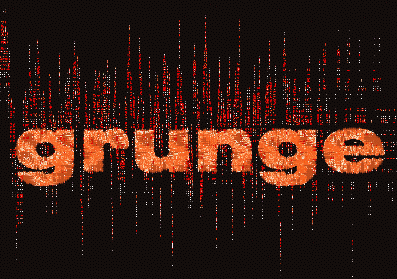
Another grunge text effect photoshop action to download today ;). You should try this tutorial because this kind of text effect is neater than the Part 1 and Part 2. Still result in destroyed fonts but I exclude random rustic details at the text background which belong in previous version.

Download the Graphic Identity - text grunge 03.ATN (2Kb) inside a WinRAR archive file.

Graphic Identity - text grunge 03.rar (1.2 KB)
Download Grunge Text Effect Photoshop Action


If you don’t know what Photoshop Action is and how to install it, you can go to my previous tutorial post about Photoshop Action.

Don’t miss out to download my next photoshop action series by subscribing to my feed!


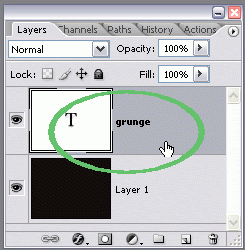
Step One – Create a text layer

Create a new file and make a text layer. You can add background if you like, just to make it easy, when you want to see a clear grunge effect.
Download Grunge Text Effect Photoshop Action


I choose dark background behind orange text.
Download Grunge Text Effect Photoshop Action

The interesting part about my grunge photoshop action, is that you can blend two colors (better be in contrast) combination. I suggest you to do some small experiment using different color combination to see how they will look for your design.
Download Grunge Text Effect Photoshop Action


Step two – Working with photoshop action

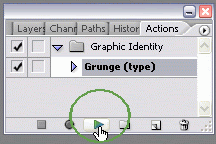
Install the grunge photoshop action, and play selection. Wait in a minute to see the result.
Download Grunge Text Effect Photoshop Action


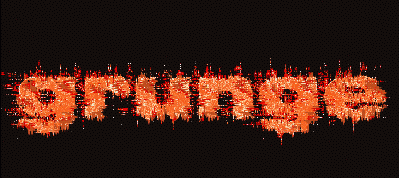
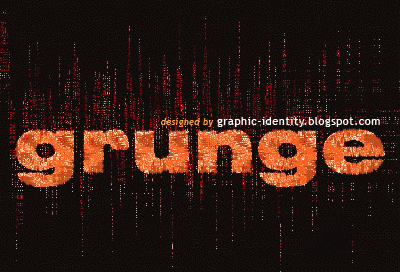
Get the finished Grunge text effect:
Download Grunge Text Effect Photoshop Action


Don’t miss out to download my next photoshop action series by subscribing to my feed!

Sunday, September 30, 2007

Grunge Text Effect in Photoshop Action – Part 2

As I promised you, I will share another grunge text effect photoshop action today. You will find more destroyed fonts in result with the same kind of random rustic details at the text background which I could not control the size to display. For a better text effect, I think you would still need to do the retouch manually and I will show you how.

Download the Graphic Identity - text grunge 02.ATN (2Kb) inside a WinRAR archive file.

Graphic Identity - text grunge 02.rar (1.12 KB)
Download Grunge Text Effect Photoshop Action


If you don’t know what Photoshop Action is and how to install it, you can go to my previous tutorial post about Photoshop Action.

Don’t miss out to download my next photoshop action series by subscribing to my feed!


Step One – Create a text layer

Create a new file and make a text layer. You can add background if you like, just to make it easy, when you want to see a clear grunge effect.
Download Grunge Text Effect Photoshop Action


I choose dark background behind orange text.
Download Grunge Text Effect Photoshop Action

The interesting part about my grunge photoshop action, is that you can blend two colors (better be in contrast) combination. I suggest you to do some small experiment using different color combination to see how they will look for your design.
Download Grunge Text Effect Photoshop Action


Step two – Working with photoshop action

Install the grunge photoshop action, and play selection. Wait in a minute to see the result.
Download Grunge Text Effect Photoshop Action


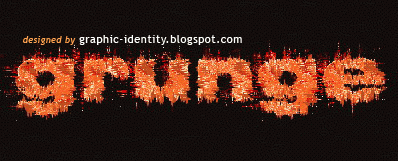
If you follow the steps correctly, then you will see this effect:
Download Grunge Text Effect Photoshop Action

There is kind of eroded background, which perhaps you need to adjust a little more.

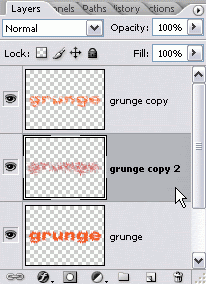
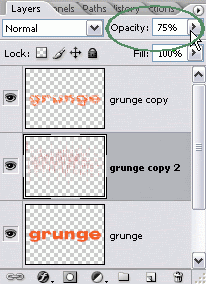
Go to the layer panel, and your default text layer has been rasterized and being duplicated in two times. Be sure to work in grunge copy 2 layer, because that is where the eroded background set.
Download Grunge Text Effect Photoshop Action

Search for eraser tool in tool box, then set its opacity as you like and start to erase unwanted background spot with this tool.
Download Grunge Text Effect Photoshop Action

You can also adjust the layer opacity as you wish to have better background look.
Download Grunge Text Effect Photoshop Action

Get the finished Grunge text effect:
Download Grunge Text Effect Photoshop Action

Don’t miss out to download my next photoshop action series by subscribing to my feed!

Tuesday, September 25, 2007

Grunge Text Effect in Photoshop Action – Part 1

This was my weekend experiment, trying to capture best photoshop action series of grunge text effects. As an experimental work, in the finished text effect there are random rustic details at the text background which I could not control the size to display. You would still need to do the retouch manually and I will show you how.

Download the Graphic Identity - text grunge 01.ATN (2Kb) inside a WinRAR archive file.

Graphic Identity - text grunge 01.rar (1.12 KB)
Download Grunge Text Effect Photoshop Action

If you don’t know what Photoshop Action is and how to install it, you can go to my previous tutorial post about Photoshop Action.

Don’t miss out to download my next photoshop action series by subscribing to my feed!


Step One – Create a text layer


Create a new file and make a text layer. You can add background if you like, just to make it easy, when you want to see a clear grunge effect.
Download Grunge Text Effect Photoshop Action

I choose dark background behind orange text.
Download Grunge Text Effect Photoshop Action

The interesting part about my grunge photoshop action, is that you can blend two colors (better be in contrast) combination. I suggest you to do some small experiment using different color combination to see how they will look for your design.
Download Grunge Text Effect Photoshop Action


Step two – Working with photoshop action


Install the grunge photoshop action, and play selection. Wait in a minute to see the result.
Download Grunge Text Effect Photoshop Action

If you follow the steps correctly, then you will see this effect:
Download Grunge Text Effect Photoshop Action
There is kind of eroded background, which perhaps you need to adjust a little more.

Go to the layer panel, and your default text layer has been rasterized and being duplicated in two times. Be sure to work in grunge copy 2 layer, because that is where the eroded background set.
Download Grunge Text Effect Photoshop Action

Search for eraser tool in tool box, then set its opacity as you like and start to erase unwanted background spot with this tool.
Download Grunge Text Effect Photoshop Action

You can also adjust the layer opacity as you wish to have better background look.
Download Grunge Text Effect Photoshop Action

Get the finished Grunge text effect:
Download Grunge Text Effect Photoshop Action

Don’t miss out to download my next photoshop action series by subscribing to my feed!

Monday, September 3, 2007

Snow Text Effect in Photoshop Action

I already wrote a tutorial about how to create Snow Text Effect using Photoshop
back then, and today I want to share the Snow Text Effect in Photoshop Action with you.

Download the Snow Text Effect.ATN (9Kb) inside a WinRAR archive file.

Snow Text Effect.RAR (1.57Kb)
Download Snow Text Effect Photoshop Action

If you don’t know what Photoshop Action is and how to install it, you can go to my previous tutorial post about Photoshop Action.

All you need to do is to dark background color (black, dark blue, etc.) and some text to edit on your new canvas.

snow text start in photoshop action

Just remember to put them in separate layer, which are background layer and text layer.
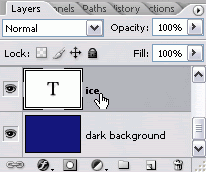
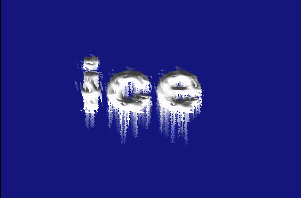
Activate the text layer, and you may need to know that a new text layer by default will be labeled in the first word or character that you type inside the canvas area. In this example I type “ice” and the layer shows ice label after you click on it.

photoshop text layer active

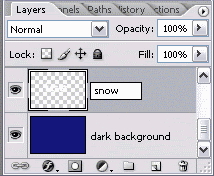
The next step is to rename that text layer with “snow” and rasterize type (right click on the layer text then click rasterize type).

photoshop rename layer

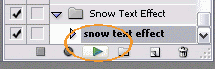
Go to the action panel and play action selection after you load (install) the Snow Text Effect photoshop action in your hardisk.

photoshop play action selection

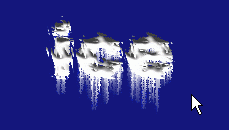
Wait in few seconds until the process of editing is finished, and you will get this kind of result:
It is rather rough effect, isn’t it? You can just edit it a little bit.

80%finished ice text photoshop action

Go to the Tool Box and find Eraser Tool. Erase unwanted snows that melt down from the top to the bottom of the text as you wish.

photoshop eraser tool

The finished look would be like this:

finished snow text effect